
First Look: Tangent Element

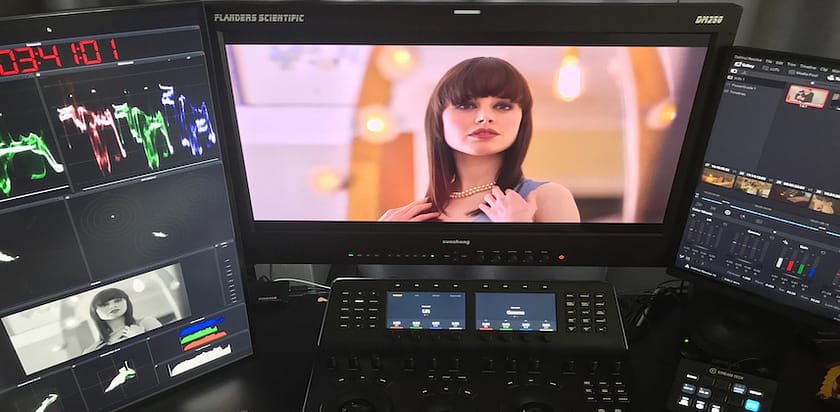
Say Hello to the 'Tangent Element' Colorist Control Surface

The ‘Tangent Element’ is the newest colorist control surface on the market and just started shipping about 3 weeks ago.

The Tao of Color visited our good friends at The Studio – B & H,  the professional video division located inside B & H Photo in New York City, to get our hands on this surface and give it a test drive in DaVinci Resolve.

The Studio-B&H’s Michel Suissa and Tao of Color’s Patrick Inhofer also offer up some buying advice.

—-

UPDATE 1: I’ve been informed that for DaVinci Resolve, the Buttons panel (Bt) and the Knobs panel (Kb) must be purchased together. One panel won’t work without being paired with the other panel.

—-

Topics covered include:

  • Physical size versus the Tangent Wave
  • Portability
  • Functionality vs. Wave in DaVinci Resolve
  • Live demo – with DaVinci Resolve
  • Overall Impressions
  • Buying advice for Resolve colorists
  • Buying advice for Scratch ad Scratch Lab colorists

If you want to buy the Tangent Element, scroll down below the video and click on the banner. Your price stays the same but you’ll be supporting this website.

• And here’s the Tangent Element homepage

• If you haven’t already, check out and subscribe to the internet’s best darn (mostly) weekly Color Grading newsletter.

Comments are open. Feel free to let us know what you think of the Element or if you have any other questions you’d like answered.


Related Posts (automatically generated)


FTC Disclosure
Tao of Color is part of the DaVinci Resolve Beta team but purchased Resolve at full retail price and has not received compensation, goods, or services from any 3rd Party mentioned in this post. We hope, one day, this might change. Affiliate links are used throughout this website, sometimes resulting in a commission on sales (which helps support TaoOfColor.com) but without raising the price you pay by one cent.

Comments { 10 }

CineGrain: A Film Grain ‘Plug-In’ In Your Pocket

A Video Review and Tutorial

What is Cinegrain?

Product Website: www.CineGrain.com

If you want to add film grain or mimik certain types of film looks (Super 8mm, Silent Film, film flashes, lens flares) then the Cinegrain package of film footage may be right up your alley. It’s not a plug-in – but actual scanned film. Since it’s not a plug-in it’s very easy on the CPU. But – it is a little heavy on your wallet… which is why I dig in so deep and show several different ways of customizing the footage for your projects.

The Cinegrain package includes 1080p and 2k ProRes video clips ranging in length from a few frames (film splices) up to 45 seconds (film grain). Packages range from 50 clips to 400 clips clearly organized by category:

  • Film Grain: 35mm, 35mm Dirt Fixed, 16mm, 8mm
  • Dirt Scratches: Heavy dirt, light dirt, heavy scratches, light scratches
  • Heads & Tails: Leader, Tails, Countdowns, Title Cards
  • Optical Filters: Straw, Sunset, Grads, etc
  • Looks: Wookstock, Silent Film, Roswell, Full Gate with Keycode, etc
  • Flash Frames: Flash Frames, Light Leaks, Strobes, etc
  • Specialty Lens Flares: Telephoto, Wide Lens, Vintage, Rotating Lens, etc

A Plug-In In Your Pocket?

Yup. These are ProRes movies on a hard drive… a small hard drive that fits in your pocket.

And in the Tutorial section of this review I’ll be showing you how you can use this footage (in Final Cut 10 and DaVinci Resolve) to gain as much flexibility with this footage as most plug-ins… and with much quicker render times.

That’s why I call CineGrain, ‘A Plug-in In Your Pocket’; you can carry around with you, use it when you need and enjoy all the advantages of most film grain Plug-ins without the usual worrying if the plug-in is installed. Just hook up the drive, import your clips, and you’re good to go.

Using & Evaluating Cinegrain

I’ve recorded an extensive Video Review and Tutorial on Cinegrain. I’ll show you what they’re selling and then take you through how to use it in Final Cut 10 (using Overlay Modes and manipulating the Color Board to customize the ‘Look’ of the grain)… and then I’ll do the same thing in DaVinci Resolve (using the footage both with Composite Modes and as an External Key). At the end of the video I’ll let you know if I think this product is a good buy for the money.

Since this is a rather long Review / Tutorial, I’ve included a Chapter List (scroll down) in case you want to skip ahead to a specific section of this video.

If you enjoy this tutorial be sure to Sign Up for my free weekly color grading email newsletter, The Tao Colorist. I feature these types of tutorials plus tons of other color grading, industry and career news from all over the ‘Net. I curate the ‘best of the best’ and deliver it to your ‘virtual doorstep’ in time for your Sunday Morning Coffee.

Full Disclosure

The product I’m reviewing was sent to me – at no cost – by Cinegrain for the purposes of this review. Other than my original request for review I’ve had so subsequent contact with them and received no other renumeration or special considerations for creating this review. All opinions and mistakes are mine and mine alone.

Enjoy!

The Video Review

Update: At 5:17 I state that the Dirt-Fixed 35mm footage is only available in the Professional package. This is incorrect. Many Dirt-Fixed clips are available in several of their packages.

Update 2: I’ve updated the video, watermarking the CineGrain footage. I expect to do a more graceful job of it in the future – but for now, understand that the big ol’ cinegrain.com text and gray box behind it does NOT appear on the footage when you buy it!

Possibly Related Posts (automatically generated):

Table of Contents

Play along by downloading these elements:

  • Sign Up to Receive free Cinegrain Footage:
    htpp://cinegrain.com

Start: Cinegrain: What Is It?

3:41 Types of Footage Provided by Cinegrain

5:17 The Different Packages Cinegrain Is Selling (Note: the Dirt Fixed versions of their 35mm grain is available in several packages besides the Professional Package)

6:22 Full Disclosure: Cinegrain sent me their footage at my request for this review

7:14 Download the Footage I’m using and follow along!

7:56 Cinegrain System Requirements

8:27 Begin: Using Cinegrain in FCPx

9:43 Prepping the Alexa Footage with Pomfort’s ‘Alexa Look2Video’ FCPx Plug-in

10:52 Examing FCPx’s Built-In ’8mm’ Effect

11:55 Plug-Ins vs Cinegrain

12:47 Cinegrain: How to Use It in FCPx

13:53 How to Customize ‘The Look’ of Cinegrain

16:39 FCPx Example #2 – 16mm_500T

18:46 Tinting Cinegrain using the FCPx Color Board

19:28 FCPx Example #3 – Heavy Dirt & Scratch

20:29 More on Manipulating Contrast & Color

21:08 Using Transforms on ‘Heavy Dirt & Scratch’

21:58 FCPx Example #4 – Cinegrain’s ‘Looks’

23:25 FCPx Wrap Up

24:04 Using Cinegrain in DaVinci Resolve

24:18 Resolve: The Initial Grade

25:58 Begin Method 1: Using Resolve’s Timeline

26:20 Adding Cinegrain to a Video Track

27:08 Customizing the Cinegrain Footage

28:36 Example #2: Woodstock Look

29:22 Begin Method 2: Using Cinegrain As An External Key

29:42 Setting up External Keys

30:53 Adding an External Key in the Node Tree

31:15 Doing an Overlay inside a Layer Node

35:26 Example #3: 35mm Grain as an External Key

35:58 Manipulating the External Key

37:06 Adjusting the ‘Under Image’

37:50 Cinegrain In Resolve Wrap Up

38:04 How much is Cinegrain?

38:58 Sidebar: System Requirements

39:31 Cinegrain Licensing: The Not-So-Fine Print

40:43 Why Budget-Based Licensing Doesn’t Work for Me

41:30 The Missing License

42:24 Final Recommendation

43:07 Goodbye & Visit the TaoOfColor.com

Comments { 4 }

The Cheapest Colorist Control Surface EVER!

Colorist Josh Petok

(This is a guest post by Colorist Josh Petok)

A colorist once said using a mouse is like “drawing with a potato.” That was my motivation for buying a Magic Trackpad. When using DaVinci Resolve, Power Windows are one of the strongest tools in your arsenal. I found that using the Magic Trackpad gave me speed and efficiency, as well as taking up much less space. However, that was only the beginning.

I found a utility called BetterTouchTool which allows you to link keyboard shortcuts to gestures like: 3 finger swipe up, pinch out, four finger tap, and over 60 others. In this tip, I will show how to map your own gestures, as well as how I use them within DaVinci Resolve to make your grading faster and more streamlined.

Josh Petok is a Colorist who helps reality shows look their absolute best. From his beginnings on “The Surreal Life,” he strives to intensify drama or comedy while still keeping the presence and authenticity of reality tv. Completing work on his 47th show, Josh is continually learning and developing new methods for enhancing the shows that he works on. You can find Josh on his homepage, his blog The Current Cut, and – of course - Josh can be found on Twitter.


Related Posts (automatically generated)


FTC Disclosure

Tao of Color has not received compensation, goods, or services from anything mentioned in this post or in the Video Tutorial. We hope, one day, this might change. Affiliate links are clearly marked, resulting in a commission on sales (which helps support TaoOfColor.com).

Comments { 3 }